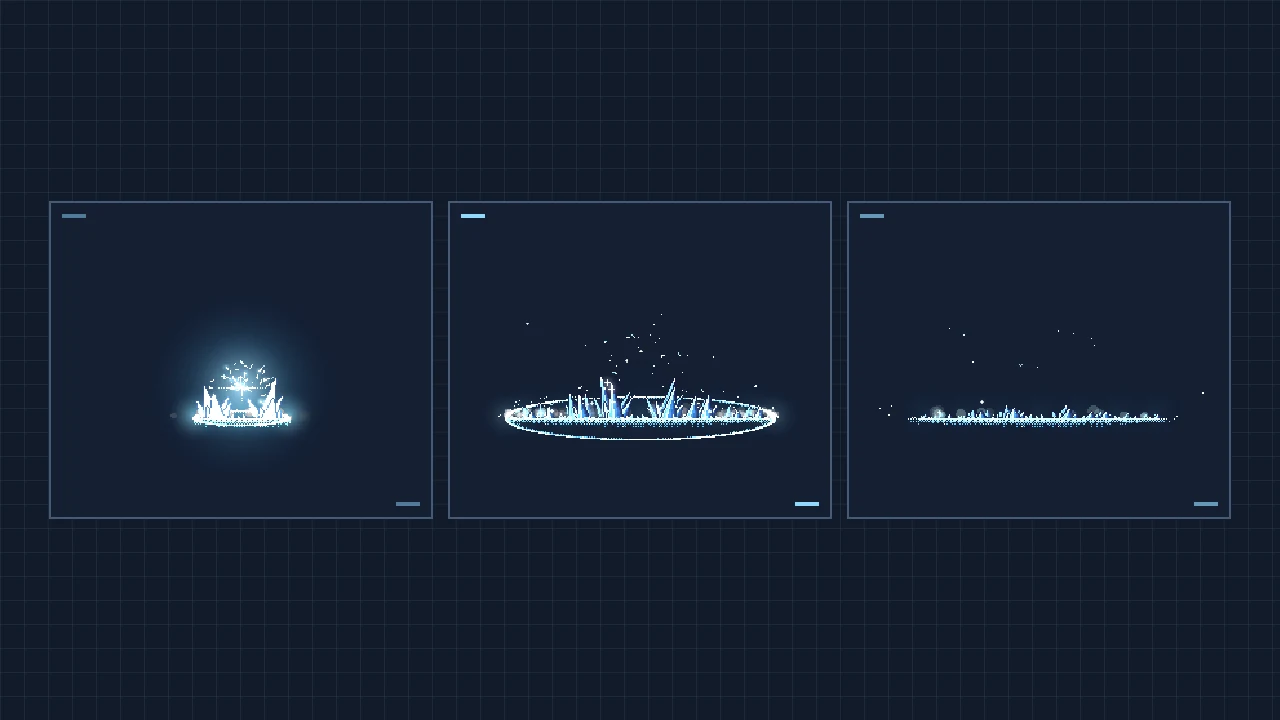
Use the Pixel Art Effects gallery above to preview and save pixel animations for a 2D game. Search for campfire when you need a repeating environmental effect, sword slash to study a character attack, or frost nova to follow the walkthrough below.
Use Enter fullscreen in the toolbar below the gallery to give the preview more room. Use Exit fullscreen in the same toolbar to return to the page.
How to use Pixel Art Effects
- Find Frost Nova. Select all, type
frost novain search, then open the matching card. If a previous category hides it, switch back to all or select ice. The detail panel identifies it as aone-shotand shows its frame count, frame size, and original FPS. - Check the motion. Set 0.5×, then click again to restart. Watch the ice ring expand and fade. Use pause to hold the preview and play to resume. Switch to 0.25× for a slower look at the impact.
- Try a variation. In palette, select fire to compare a warm version with the original, then choose its own to restore the effect’s default colors. Click new seed to try a different arrangement of particles. Mirror flips an effect horizontally and is easiest to see on a directional move such as
sword slash. - Check how it will look in your game. Switch backdrop between dark and light to check how well the effect reads on different surfaces. Use none to preview it without a backdrop. When character is available, switch it off to see the effect separately from the character preview.
- Save the sprite sheet. Click sprite sheet, then scroll down inside the effect panel until you see the frame grid. Right-click the grid and choose your browser’s Save image as command. On touch screens, press and hold the grid. If the save menu is unavailable inside the embed, generate the sheet on the original gallery by Patch.
Import the Frost Nova sprite sheet
The generated PNG has a transparent background and keeps your palette, mirror setting, and seed. The backdrop and playback speed are preview settings. The browser sheet captures the effect itself. The full character wind-up and hit reaction are part of the staged preview, and some effects drawn directly on the body may still include the stock character.
- Slice the PNG. Frost Nova shows 103 frames, each 288 × 192 px, with 9 columns at 30 FPS. Set your sprite editor to a 9-column × 12-row grid or use the frame dimensions directly. Set spacing and margins to zero. Use the values below the generated image if the gallery updates them.
- Build the animation. Read the cells left to right, then top to bottom. Use the first 103 cells and leave out the five unused cells at the end of the grid. Set the animation to 30 FPS with looping turned off.
- Trigger it in your game. Set the pivot to (144, 150) from the top-left of each frame so the ring starts at the spell’s impact point. Play the animation once and remove it when playback ends. For a repeating effect such as
campfire, use that effect’s own dimensions and FPS, then turn looping on.
Export frame metadata or use JavaScript
If your engine can import Aseprite-style JSON, use the renderer to export the PNG alongside frame rectangles, timing, and the effect’s pivot. With Git and Node.js 18 or later, run these commands in a terminal. Export documentation
git clone https://github.com/patch-gg/pixelfx.git
cd pixelfx
node tools/render.mjs ice/frost-nova --sheet --no-actor
Find frost-nova.png and frost-nova.json in records/ice/frost-nova/. Keep them together when importing. The terminal command starts with the effect’s default settings, independent of the palette, seed, or mirror setting you tried in the browser.
For a JavaScript game, install the library with npm install github:patch-gg/pixelfx in your game project. Open an effect and use copy in the use it panel for its import and drawing example. If the button says selected, use your device’s Copy command. The snippet belongs in your game’s update and draw loop. If it shows palette: […], replace […] with your array of hex colors or remove the palette option to use the default. JavaScript documentation
Sprite Fusion and Pixel Snapper
Some effects come from Sprite Fusion. Both libraries use the same frame buffer format, so you can draw effects from both into one frame. Sprite Fusion’s open-source pixel art VFX
If you already have a character sprite with blurred or uneven pixels, upload it to Sprite Fusion Pixel Snapper, adjust Colors if needed, and save the cleaned PNG. Then use Pixel Art Effects to pick a separate animation, such as a slash or hit spark, to play alongside your sprite. Sprite Fusion Pixel Snapper