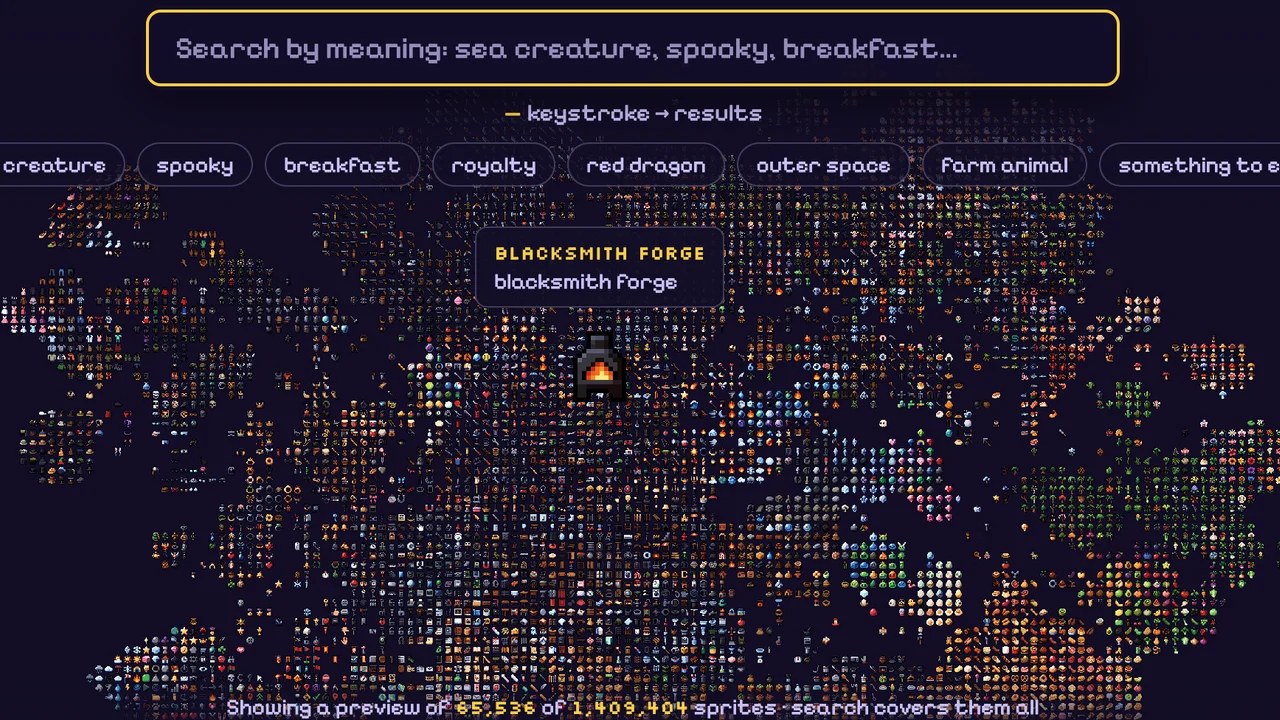
Use Pixel Search when you need a sprite for a pixel game. Leave the search box empty if you're looking for ideas, or type a description if you know what your game needs. Try red dragon for a boss, sea creature for an underwater level, or gold key for a pickup. Open a sprite to check its outline and colors before you save it.
How to use Pixel Search
Watch how zooming reveals more sprites when the search box is empty. Then try a search, open a sprite, and download it.
1. Browse the map and zoom in to reveal more sprites
Start with an empty search box. Pixel Search shows a map of sprite clusters. From far away you'll see a few sprites representing each group. Pick one cluster, point at it and scroll up, or spread two fingers on a touch screen. Keep zooming in on that cluster: more sprites fade into view between the ones you could already see.
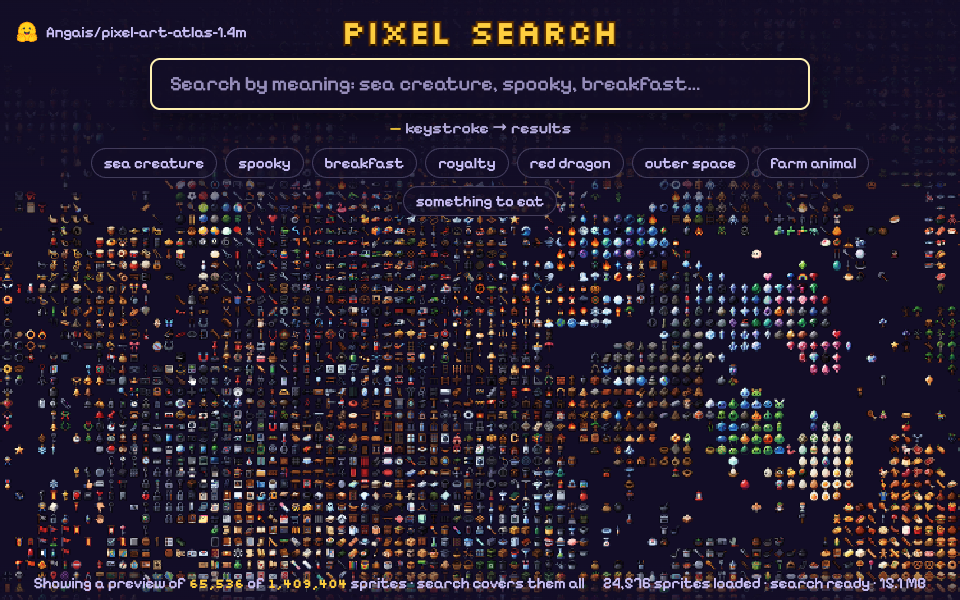
Pick one group from the wide view and zoom in on it.
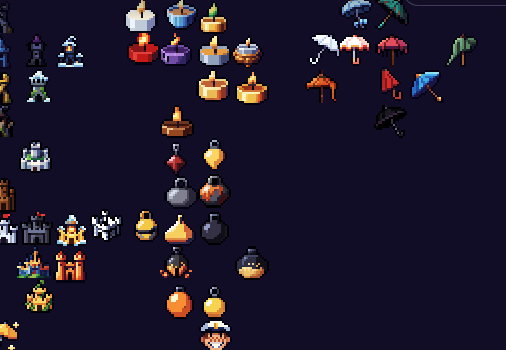
Drag the map to explore nearby sprites. Zoom out again when you want to switch to a different cluster.
2. Search by subject, then add a detail
Tap an example such as sea creature, spooky, or red dragon to see what Pixel Search brings up. If you already know what you want, type a short phrase in the search box. Try dragon for a wider mix or red dragon to favor matches with red details. Results update as you type; there's no need to press Enter.
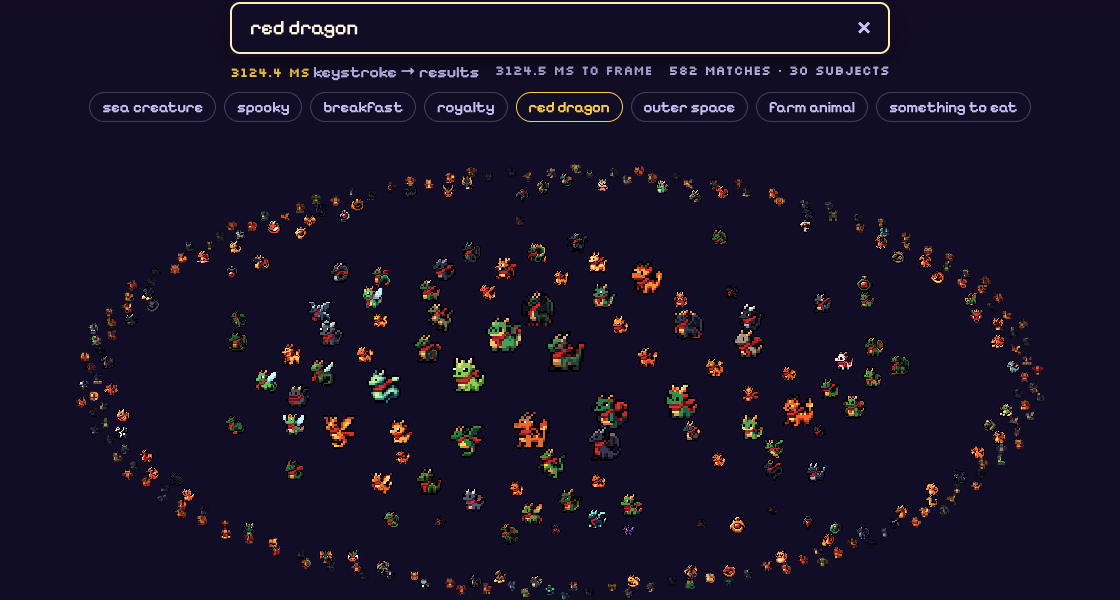
Start with the larger matches near the center. If the line under the search box says showing top, the map is displaying a subset of the matches.
3. Zoom in on results and open a sprite
In search results, zooming gives you a closer look at the current matches. It doesn't broaden the search the way zooming in on the empty map reveals more sprites. If you want a different set of results, change the query. If you just want to compare two dragons, zoom in and drag until you can see both clearly.
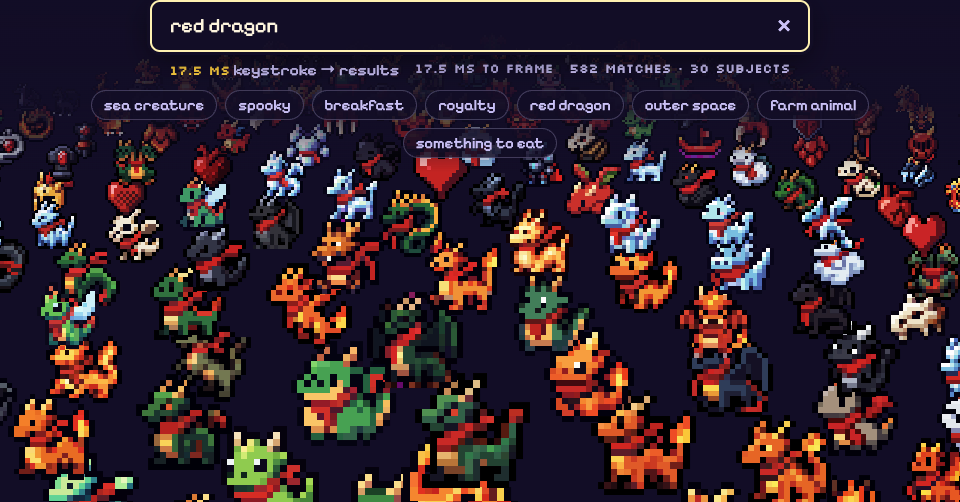
Compare outlines and colors. For a boss you need to spot quickly, look for a clear shape, such as an open jaw or wide wings.
Hover with a mouse to read the caption, or click or tap a sprite to open the larger preview. Look for details that still read at game size. If you like the subject but want another version, choose Search “dragon” at the bottom of the preview. Pixel Search replaces the current query with the subject so you can compare more dragons.
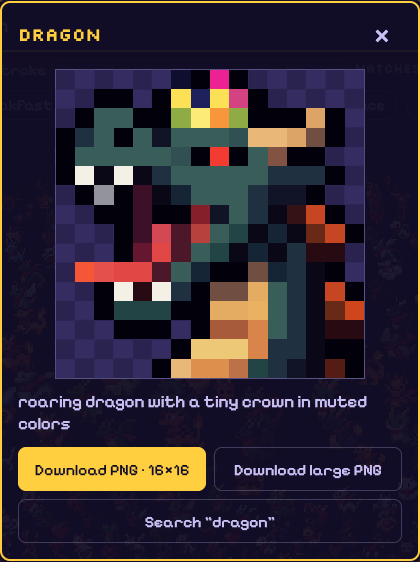
Choose Download PNG · 16×16 for the original size, Download large PNG for a bigger copy, or Search “dragon” to see more sprites on that theme.
4. Save the size that fits your game
Choose Download PNG · 16×16 for a game that uses 16-pixel assets. The PNG keeps its transparent background so you can try it over your own floor or backdrop. Download large PNG saves a 512×512 copy of the same sprite with crisp, enlarged pixels. Use that size for a reference board or mockup.
What should I search for in Pixel Search?
- For a character or enemy: Try
knightfor a playable hero, orred dragonfor a boss. Compare silhouettes at game size before picking one. - For an item: Try
gold keyfor a pickup orpotionfor a healing item. Check whether the shape still reads against the colors in your level. - For a scene idea: Tap sea creature for an underwater area or spooky for a dungeon. If you find something close, open it and choose Search with its subject name to keep exploring that theme.
Pixel Search is a quick way to find individual sprites for a prototype. For a moving hit, spell, or pickup effect to go with one, try Pixel Art Effects.
What if Pixel Search is still loading or finds nothing?
If you see Loading search index…, leave your query in place and wait for the match count to appear. If Pixel Search says no sprites match, shorten the phrase to one subject, such as dragon, then add a detail once you see results. Use the × in the search box to clear the query and return to browsing.
If the sprites feel cramped, use Enter fullscreen in the toolbar below Pixel Search. Use Exit fullscreen there to return to the guide. If the tool shows a WebGL2 or canvas error, try a current browser with hardware acceleration enabled.