Pixel Art Lighter lets you test how a moving light changes pixel game art. Open a character, item, or environment PNG in Albedo, create matching maps, then drag the light across the canvas. Watch the same artwork pick up different highlights without drawing a new sprite for every light position. Use Enter fullscreen below the editor for more room.
See Pixel Art Lighter in action
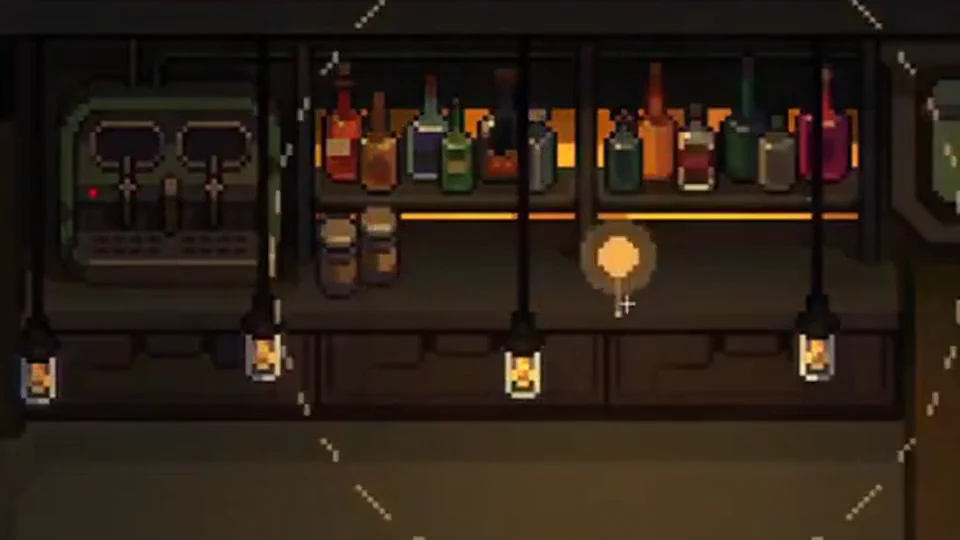
Watch a warm point light move across a pixel game tavern. Bottle shelves, wooden panels, and hanging lanterns brighten as the light passes, showing how lighting changes the mood of a game environment. The video and matching animated WebP are both 960 × 540 (16:9). The video runs at 60 FPS; the WebP loops at 30 FPS.
Full Pixel Art Lighter demonstration
Watch moving lights on bone sprites, normal-map settings on a dragon, light-mask adjustments on a plant, and lighting edits in a tavern. Follow the controls to see how the different maps change a pixel game asset.
Light a sprite for your pixel game
- Load your art. Under Albedo, select Browse or drop a PNG onto the Browse button. Albedo means your original colors and transparency. A small character, treasure chest, wall tile, or item is a useful starting point. If the size changes, confirm Continue to clear incompatible maps. If you replace artwork with another image at the same size, remove the old Normal and Light Mask before creating matching maps.
- Create a Normal map. Under Normal, choose Create, then select Object for an item, Character for a sprite, Architecture for masonry, or Terrain for ground. Adjust Shape Strength, Normal Strength, Edge Width, and Facet Splitting while watching the preview. Keep Merge Outlines enabled as a starting point, then compare the result. Select Apply when it looks useful.
- Create a Light Mask. Under Light Mask, select Create. Adjust Shading Strength, Darkest Value, Lightest Value, and Cavity Darkening to control how much light each region receives. Select Apply, then use the main Light Mask slider to blend its influence.
- Check the game mood. Drag over the canvas to reposition the point light, or enable Follow Mouse to let it follow your pointer. Switch View between Final, Albedo, Normal, and Light Mask. Try a warm Light Color for a lantern and a cooler color for a cave. Adjust Brightness, Height, Falloff, and Ambient until the sprite stays readable as you move the light from one side to the other.
- Export your textures. Use Export under Normal and Light Mask to save each map as a PNG. The download button over the canvas saves the current final lighting as a PNG. Keep the original albedo alongside both maps for your game project.
What the three textures do
| Texture | What it changes | What to check in a pixel game |
|---|---|---|
| Albedo | Original sprite colors and alpha | Silhouette, palette, and transparent edges |
| Normal | The direction each pixel appears to face | Chest edges and wall facets should respond coherently as the light moves |
| Light Mask | How strongly a region receives direct light | Dark crevices should stay readable without flattening every highlight |
Pixel Art Lighter estimates normals from the image's brightness, silhouette, and connected color regions. Painted shadows and material colors can confuse that estimate. Use Modify to correct a region: Wand (W) selects a color cluster, Pencil (B) paints a selection, and Marquee (M) selects a rectangle. For normals, choose a direction and apply it; for a light mask, adjust the selection's brightness. Preview from several light positions before exporting.
A light mask controls light reception. It does not create physical cast shadows behind the chest or calculate what another object blocks. The final-lighting PNG is a still image; moving lights in your own game require a compatible renderer or shader that reads your maps.
A pixel game art workflow
Draw or animate a sprite in Pixelorama, export a PNG, then open it in Pixel Art Lighter to test a torch, spell, or cave-light mood. Use Pixel Palette to keep your base colors consistent, and Pixel Art Effects to explore separate spell or pickup animations. Keep your exported textures at matching dimensions and use nearest-neighbor filtering in your game so the pixels stay crisp.
Animated lighting preview
Download animated WebP
·
Download MP4
Pixel Art Lighter questions
Is Pixel Art Lighter free?
Yes. The editor is by Red Hat Sprite, developed for Moonfell RPG and released under the MIT license. Pixel Game embeds the original online editor as a tool for pixel game art. The editor's Info panel includes its credits and detailed controls.
Can I edit an animated sprite sheet?
You can load a PNG sprite sheet as an image. This editor previews lighting over the whole image; it does not play animation frames. Keep each frame aligned with its corresponding normal and light-mask pixels, then test the animation in your game.
Why does my sprite look too dark or lumpy?
Raise Ambient, reduce the main Light Mask influence, or lower Normal Strength when creating the normal map. Try a different preset and compare Albedo with Final. Correct misleading facets with Modify when painted shading has been interpreted as geometry.
Can I use Pixel Art Lighter on a phone?
The editor can scroll on a narrow screen. Rotate to landscape and use fullscreen for more workspace. Pinch or use the zoom controls to inspect the art; Fit restores the whole image. On a desktop, hold Space and drag, or use the middle mouse button, to pan when zoomed in.
Does it export a game-ready lighting system?
It exports PNG maps and a still lighting preview. Your game engine needs to interpret those maps. The editor's Info → Using in a game engine section has integration notes, but light-mask channels and normal conventions depend on your shader. Start by testing one sprite before converting a full tileset.