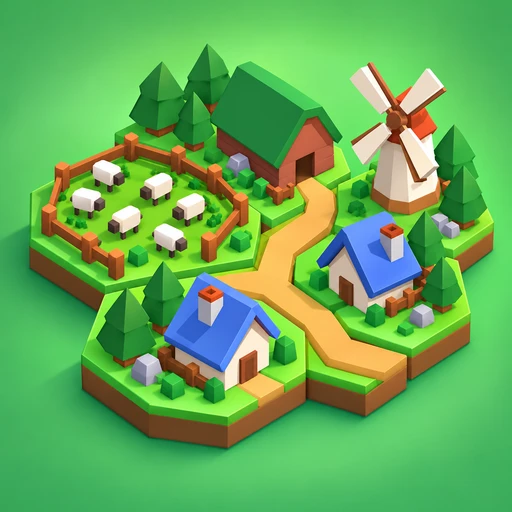
ABOUT THIS GAME
Play Pixel Village Builder Game Online
Village Builder gives you a patch of countryside and a small set of building cards. Choose where a house, pasture, or windmill belongs, watch the points appear around it, and use that feedback to plan your next move. Try Village Builder if you like a relaxed building game with small placement puzzles: every addition changes both your town and the opportunities around it. Choose a map for score targets, or open Sandbox when you want to build your own way.
| Detail | What to expect |
|---|---|
| Game | Village Builder |
| Category / tags | Simulation · Village Building · Hex Tiles · Placement Strategy |
| Main activity | Place buildings and use neighboring spaces to earn bonuses |
| Progress | Reach score targets to level up and unlock building choices |
| Map choices | The Meadow, The Island, The Mountain, The Plains |
| Free building | The Sandbox |
| Orientation | Portrait and landscape |
| Platform | Web browser |
| Available on Pixel Game | October 29, 2026 |
How to Play Village Builder
- Start with a map. The Meadow gives Village Builder a grassy setting with roads, rivers, rocks, and trees to build around. Use the gear menu to check the other maps or choose The Sandbox.
- Pick a building pack. Compare both columns when Village Builder offers a choice. Stable comes with pasture tiles; Mill comes with fields. Look at the whole bundle before selecting one.
- Choose a card from the bottom row. The cards hold your available buildings and roads. Their numbers help you track how many pieces remain.
- Place the piece on the hex grid. Compare nearby spaces and the buildings already there. Start with a small group so it is easy to see what each addition changes.
- Read the point feedback. Village Builder displays floating bonuses around affected buildings. Follow those numbers and the Points bar to learn which placements help your score.
- Reach the next target. Level up, check Next Unlock, and choose another pack to keep expanding Village Builder.
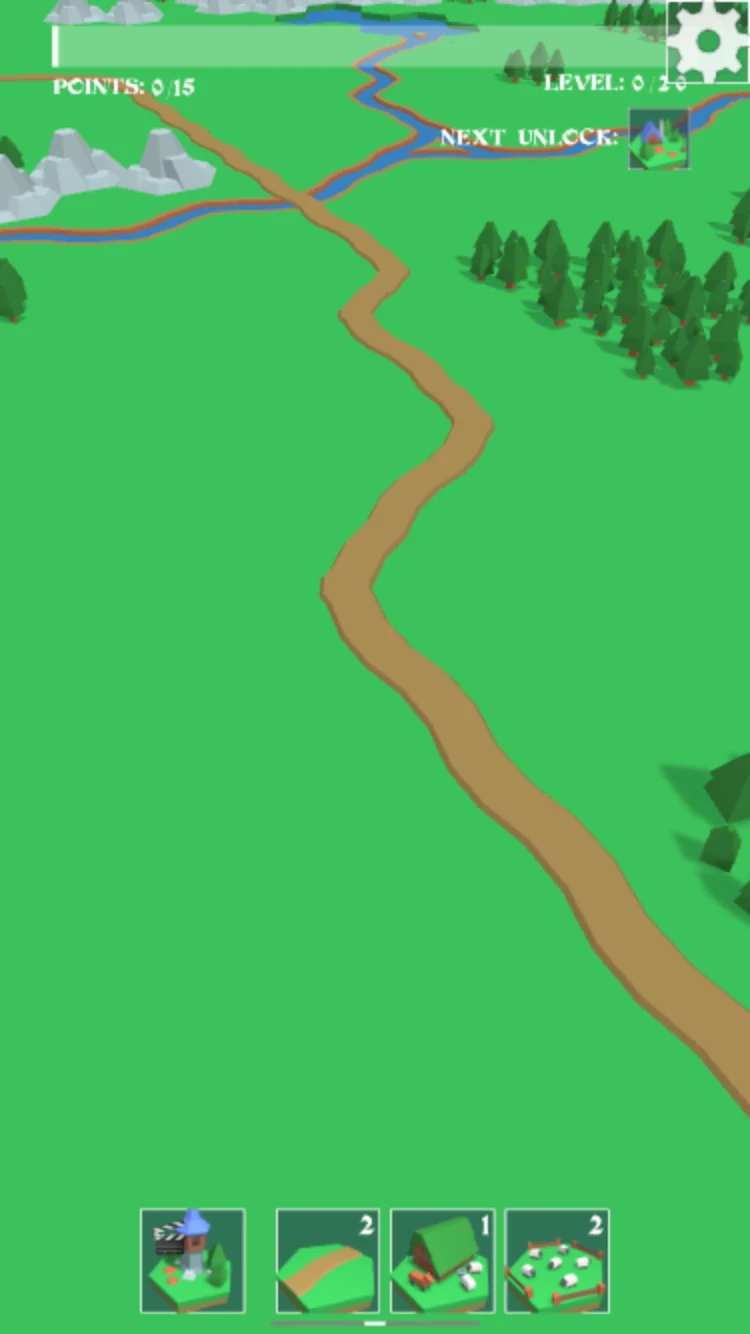
Choose a card from the bottom row, then look for room beside the road to begin your village.
Village Builder Controls and Tools
Village Builder puts building cards and tools along the bottom, with the gear menu at the top right. Use the on-screen selections to choose your next piece and its position.
| Control / tool | What to do |
|---|---|
| Building pack panel | Select one of the two bundles of buildings and supporting tiles |
| Bottom-row card | Select the building or road you want to place |
| Hex grid | Choose the destination for your selected piece |
| Gear button | Open the map menu |
| Continue Playing | Return from the menu to your current village |
| Undo | Use the undo option when you want to revisit a placement |
| Skip | Use the skip option when you want to pass on a piece |
Skip, Undo, and some extra building options in Village Builder carry a video symbol. Check the prompt before choosing one; these tools can involve an ad. Ads can interrupt the building flow, so keep that in mind if you prefer uninterrupted play.
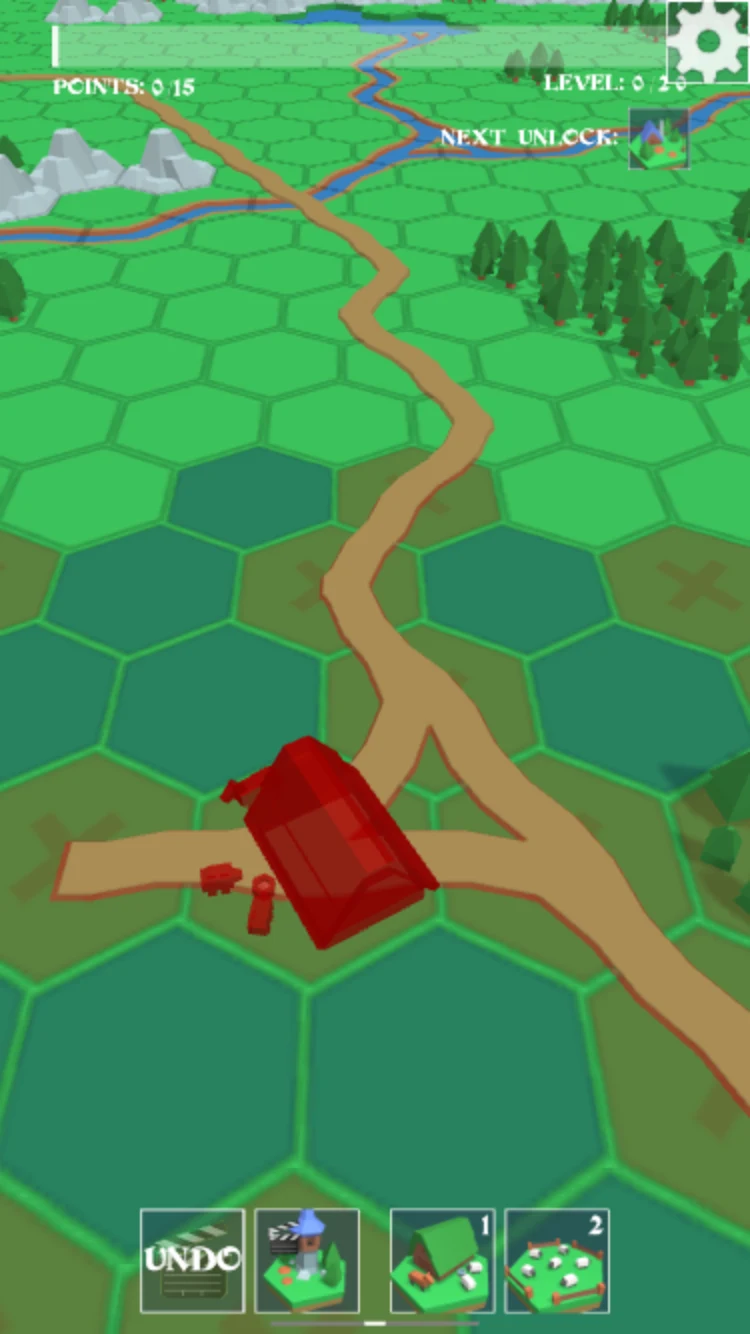
Check the destination hex before placing a road. Keep an eye on the remaining cards in your toolbar.
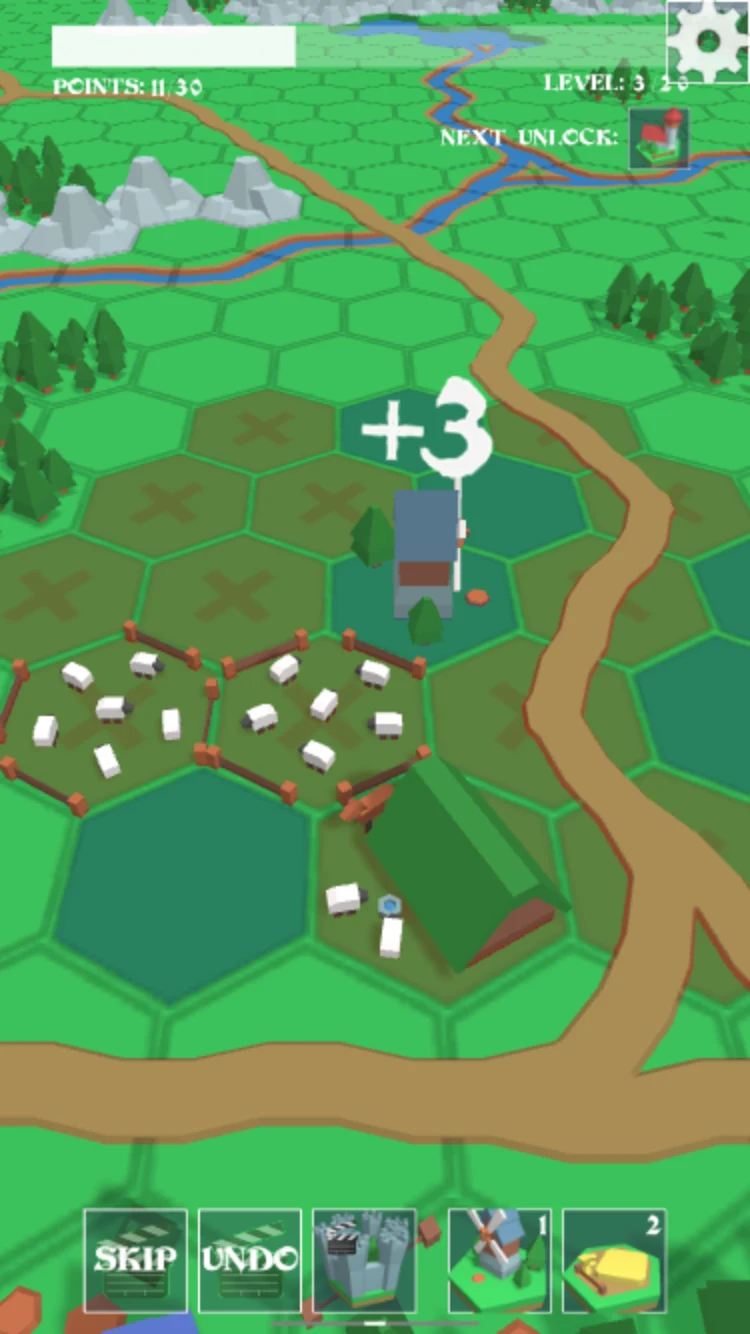
Watch the points above your latest addition, then decide whether to keep building nearby or try another space.
Choose a Village Builder Map or Sandbox
Open the gear menu in Village Builder to choose The Meadow, The Island, The Mountain, or The Plains. The menu shows a level counter beside each map, so you can see where you have made progress. Start with The Meadow if you want to learn the building-and-scoring loop before trying another setting.
Choose The Sandbox in Village Builder when arranging a town is your main goal. Its menu invitation is to build anything you want. Choose a regular map when you want the next score target to guide your decisions. Use Continue Playing if you only opened the menu to check your options.
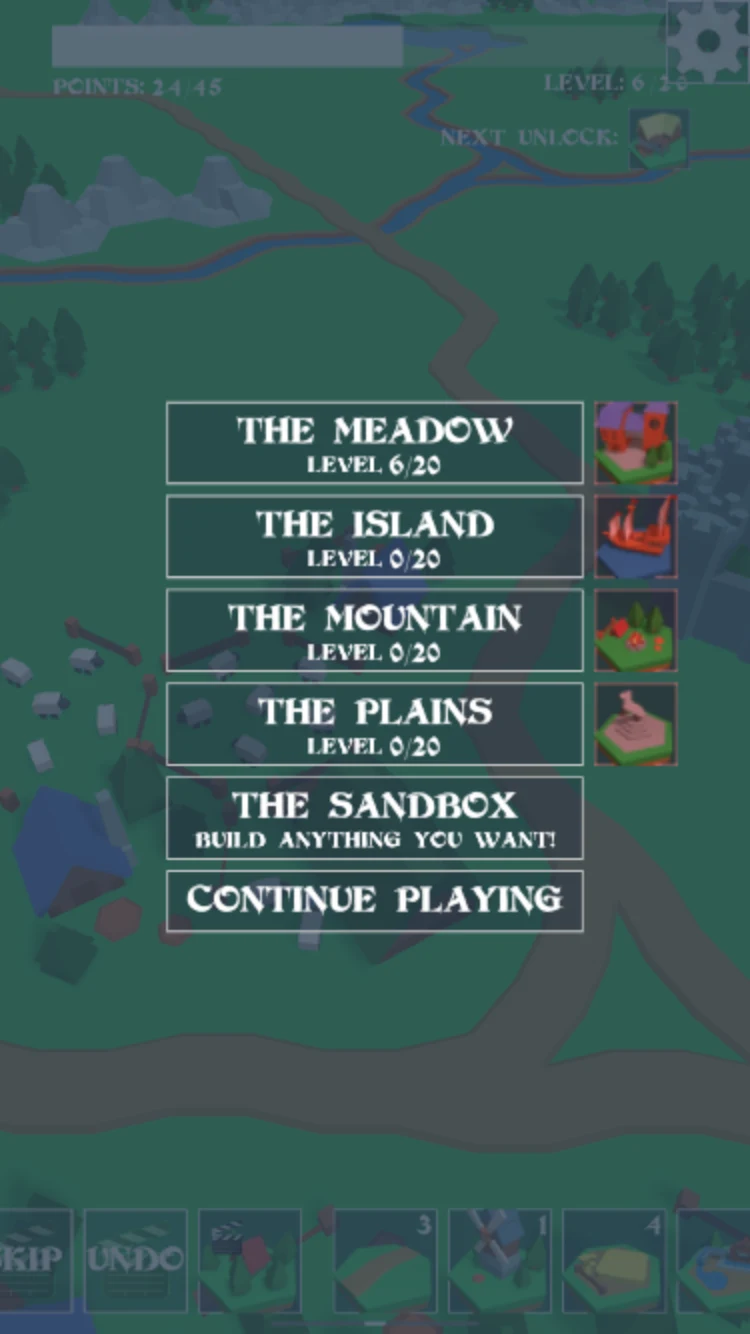
Pick a map for level progression, choose The Sandbox for your own building project, or return with Continue Playing.
Village Builder Building Packs and Bonuses
Choose a bundle that fits the space you have
Village Builder offers grouped building choices. A Stable bundle includes a stable, two pastures, and two road pieces; a Mill bundle includes a mill, two fields, and two roads. Compare the empty spaces around your current village before picking. A bundle is more useful when you have room for its supporting pieces as well as its main building.
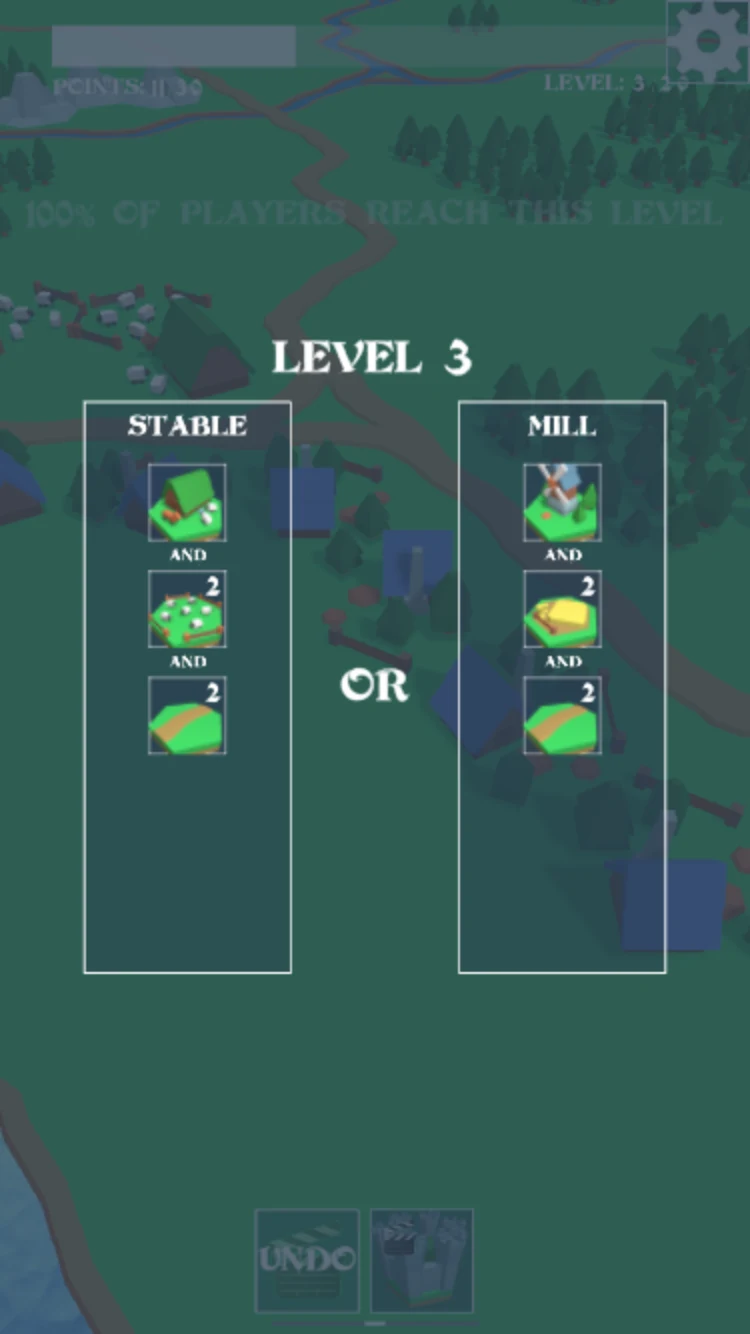
Compare every piece in each bundle. Choose the pack you can fit into the area you are developing.
Let the neighbors teach you where to build
The same kind of piece can produce different results in Village Builder depending on its position and surrounding buildings. Follow the floating numbers after placing homes, pastures, fields, and mills. Try another arrangement when the next suitable piece arrives, then compare the feedback. You can learn useful combinations one placement at a time.
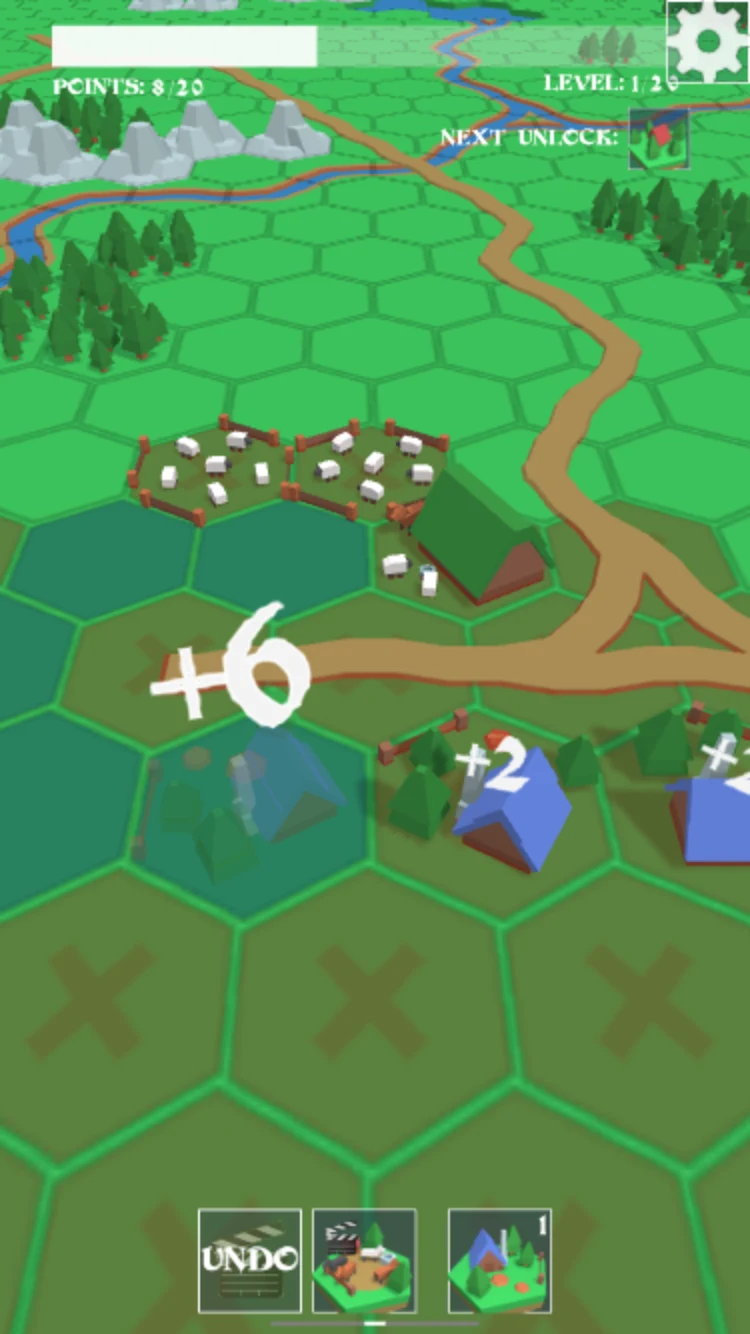
Keep the bonuses in view. The numbers help you judge how a new piece works with the buildings around it.
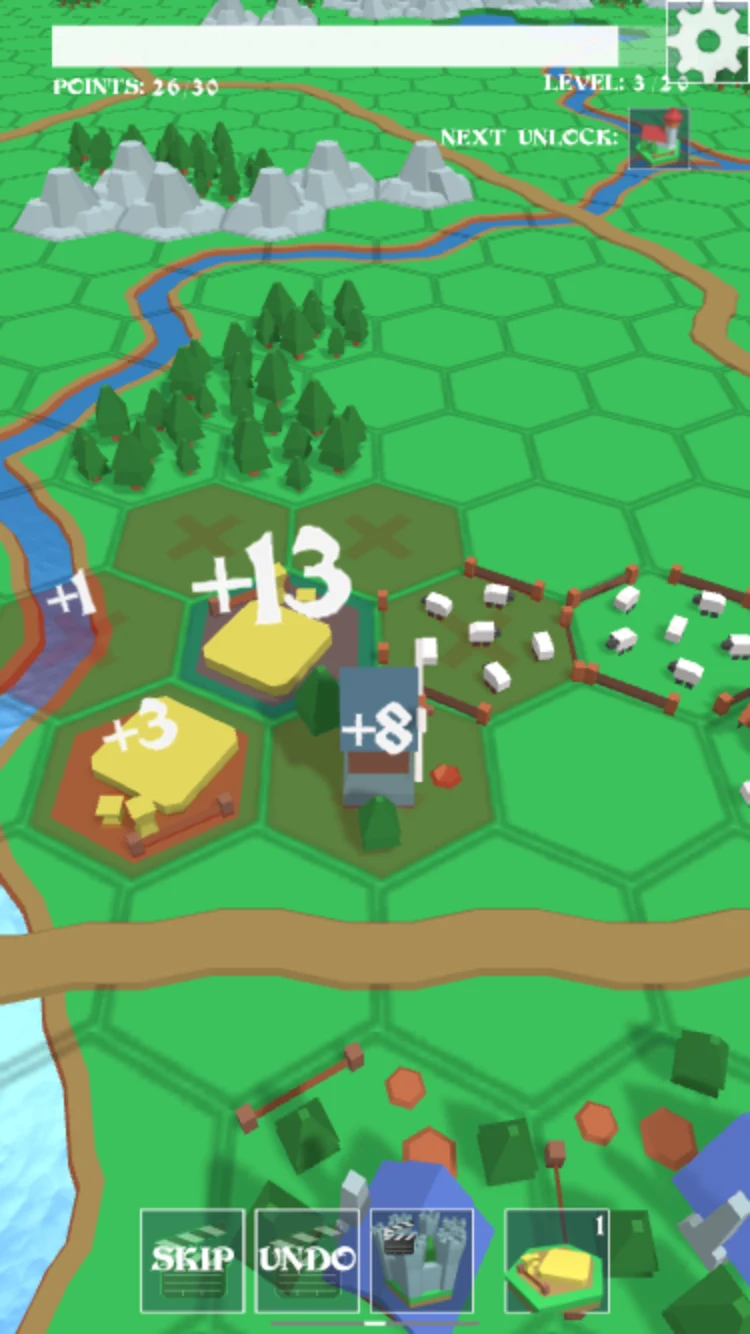
Compare the field and mill bonuses, then use what you learn when choosing the next nearby hex.
Unlock more pieces as your town grows
Village Builder adds more building choices as you score and level up. Houses, farms, mills, churches, and castles give you new pieces to fit into the town. Check the Next Unlock icon near the level display to see what you are working toward, and leave some neighboring spaces open for later additions.
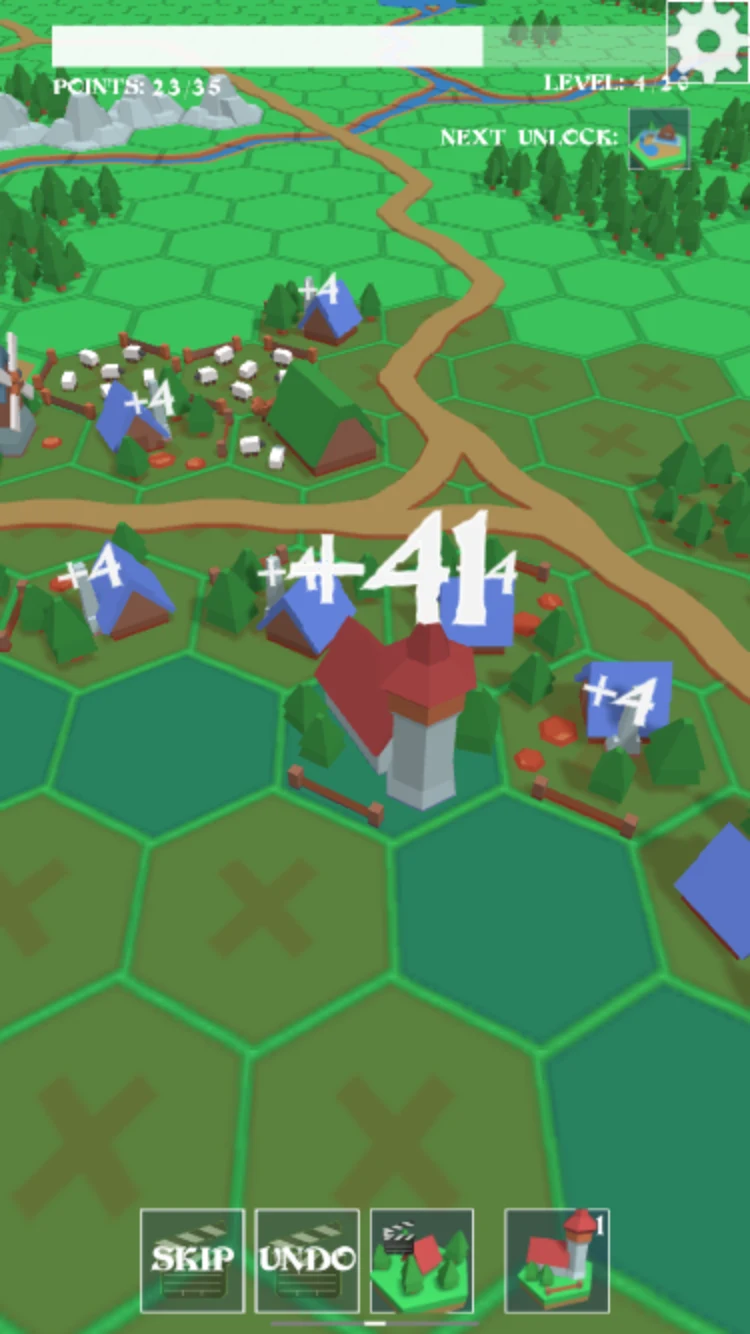
Leave room around your growing neighborhood so you have several positions to compare when a new building arrives.
What Can You Practice in Village Builder?
Village Builder gives you practice comparing spaces, planning around neighboring pieces, and reading the result of a move. Choosing a bundle also asks you to think a few placements ahead: where will its main building go, and where can its smaller tiles fit? Use the score feedback to adjust your next choice instead of trying to memorize every combination at once.
Tips for Playing Village Builder Online
- Plan for the whole pack. In Village Builder, a mill or stable arrives with supporting tiles. Leave enough nearby room to use the bundle.
- Compare more than one hex. Look at the neighbors around two or three possible destinations before placing an important building.
- Read the floating numbers. Village Builder's bonuses tell you more about a placement than the town's appearance alone.
- Keep useful spaces open. Filling every gap immediately can leave fewer choices for your next unlock.
- Follow the current target. Check Points and Next Unlock when deciding which part of Village Builder to expand next.
- Choose Sandbox for a personal project. Use it when you would rather arrange your village around an idea of your own.
- Read tool prompts. Check the video-marked options before using Skip, Undo, or extra building offers.
Is Village Builder Worth Playing?
Village Builder suits players who enjoy low-poly scenery, relaxed construction, and finding a better spot for the next piece. The appeal is easy to test: place a small neighborhood, watch its bonuses, and see whether you want to improve the arrangement. New building packs give you another reason to keep shaping the map.
Try Village Builder if planning a pasture, fitting in a windmill, and watching a few houses become a town sounds satisfying. Map progression provides a score goal, while Sandbox gives you another way to approach building. Expect ads during play, especially around video-marked tools and offers; frequent interruptions may matter if you came for a quiet building session.
Play Village Builder Online
Start Village Builder in the player above. You can play in portrait or landscape; use fullscreen when you want more room to compare the hex grid. Pick your first pack, find a place for its main building, and follow the bonuses as your village grows. For another project afterward, browse more simulation games.
Village Builder FAQs
How do I start building in Village Builder?
Choose a building pack, select a card from the bottom row, and place its piece on the hex grid. Watch the points that appear to see how the placement worked.
How do I earn more points in Village Builder?
Position and neighboring buildings affect bonuses. Compare nearby spaces, check the floating numbers after each addition, and use that feedback for your next placement.
Does Village Builder have a Sandbox mode?
Yes. Open the gear menu and select The Sandbox. The same menu lists The Meadow, The Island, The Mountain, and The Plains, with level progress beside each map.
Can I undo a move in Village Builder?
An Undo option appears in the bottom toolbar. It carries a video symbol, so check its prompt before using it. Skip is another video-marked tool available during building.
Can I play Village Builder on a phone?
Yes. Village Builder supports portrait and landscape play with on-screen building cards and tools. Choose the orientation that makes the map easiest for you to read.