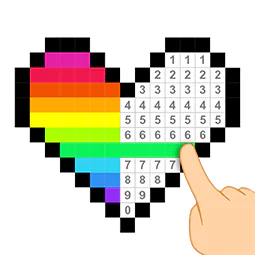
ABOUT THIS GAME
Play Pixel Color Online
Pixel Color is a relaxing color-by-number pixel art game where you turn numbered grids into colorful pixel pictures. Choose an artwork from the library, match each number with its corresponding color, and fill the pixels until the entire picture is complete.
From animals and objects to imaginative pixel designs, the library offers different pictures to color. The rules are simple, but completing a detailed image requires observation, patience, and attention to small details.
Whether you want a quick casual game or a relaxing coloring activity, Pixel Color lets you create pixel art one square at a time.
How to Play Pixel Color
Pixel Color uses a simple number-based coloring system. Each color is assigned a number, and the pixels in the picture contain matching numbers. Your task is to select a color and fill the pixels marked with the corresponding number.
1. Choose a Pixel Art Picture
Start from the Library, where you can browse the available pixel art pictures. Choose a design you want to color and open it to begin.
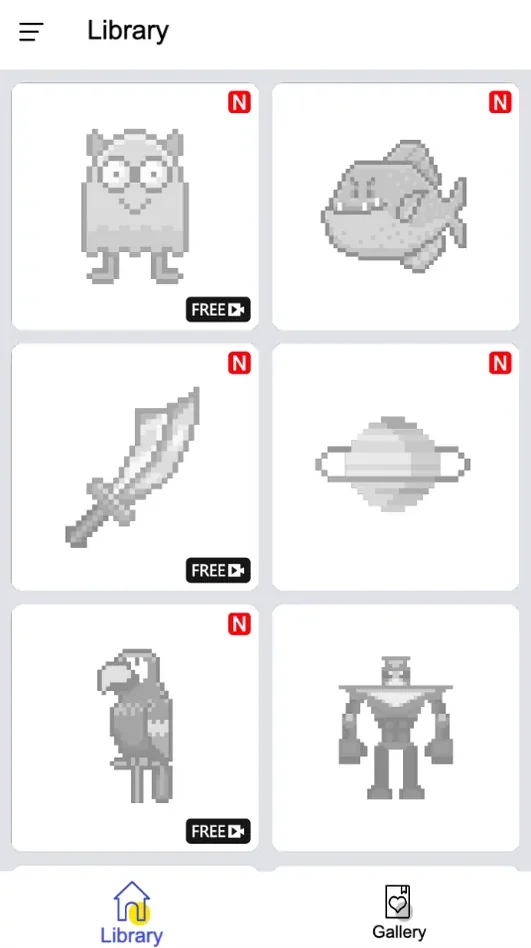
Choose a pixel art picture from the Pixel Color library and start coloring.
2. Select a Number and Start Coloring
After opening a picture, you will see the artwork together with numbered colors at the bottom of the screen. Each number represents a specific color.
For example, selecting Color 1 lets you work on pixels that correspond to number 1. Tap or click the matching areas to begin adding color to the picture.
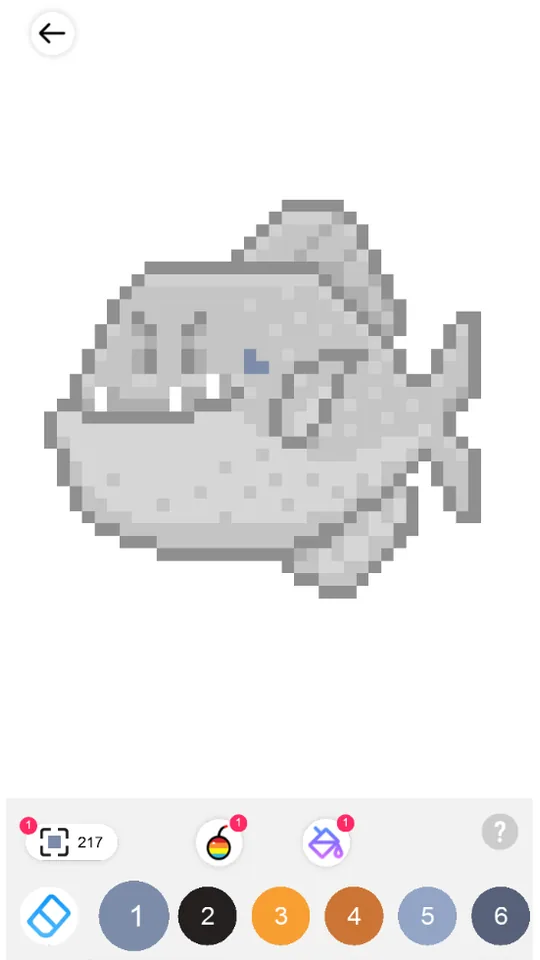
Select a numbered color and begin filling the matching areas.
3. Zoom In to Find Matching Numbers
For detailed pictures, zoom in on the artwork to reveal the numbered pixel grid more clearly.
Once zoomed in, individual squares display numbers such as 1, 2, 3, 4, 5, and 6. Match these numbers with the numbered color palette at the bottom of the screen. If Color 1 is selected, look for squares marked 1 and fill those areas.
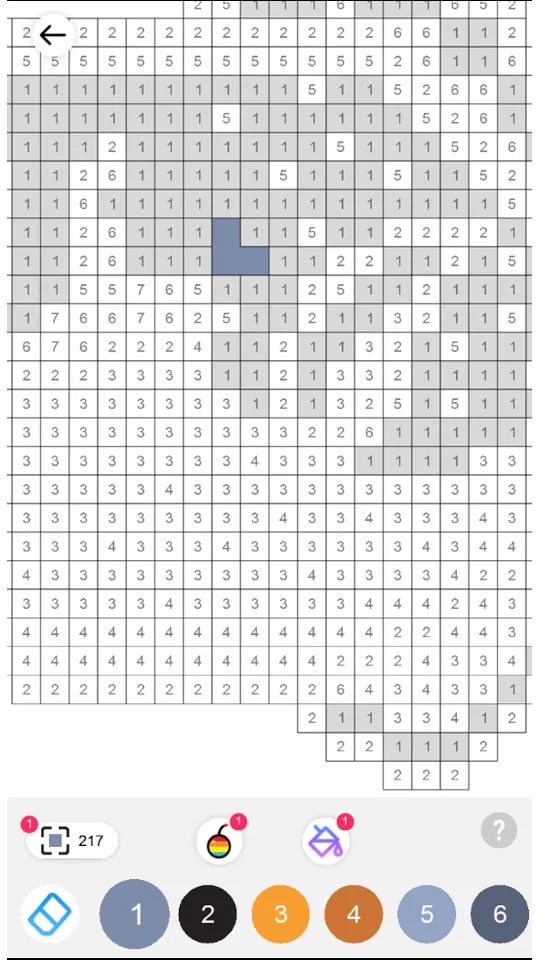
Zoom in to clearly see the numbered grid and match each pixel with the correct color.
4. Use the Brush for Faster Coloring
Pixel Color includes a brush tool that helps you color larger matching areas more efficiently. This is useful when a picture contains many pixels that belong to the same color.
Instead of working through every area one pixel at a time, use the available coloring tools to speed up progress while watching the artwork gradually come to life.
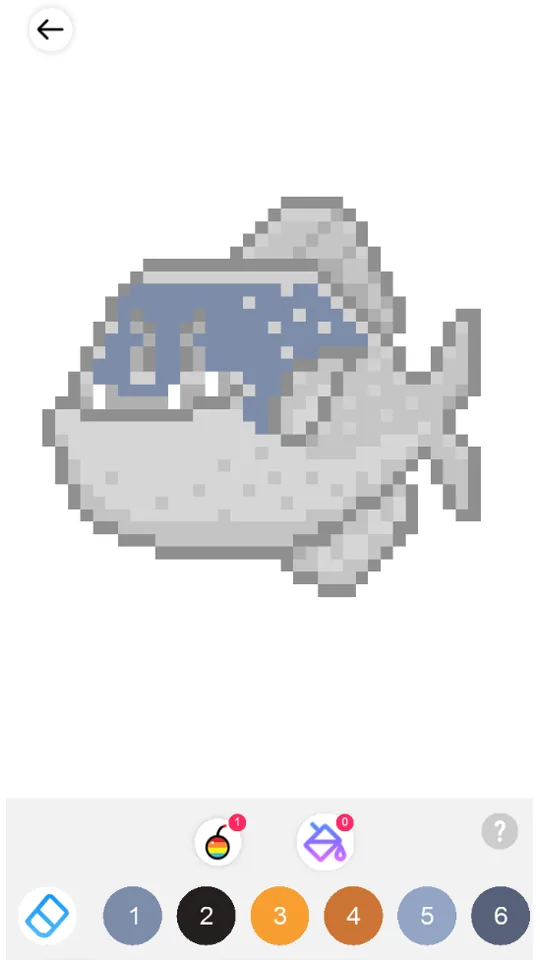
Use the brush tool to work through larger sections more efficiently.
5. Check the Help Guide
Tap the question mark (?) to open the in-game help guide when you need instructions. The tutorial explains useful controls such as long press and continuous coloring.
Continuous coloring can make it easier to work through groups of matching pixels without repeatedly tapping every square.
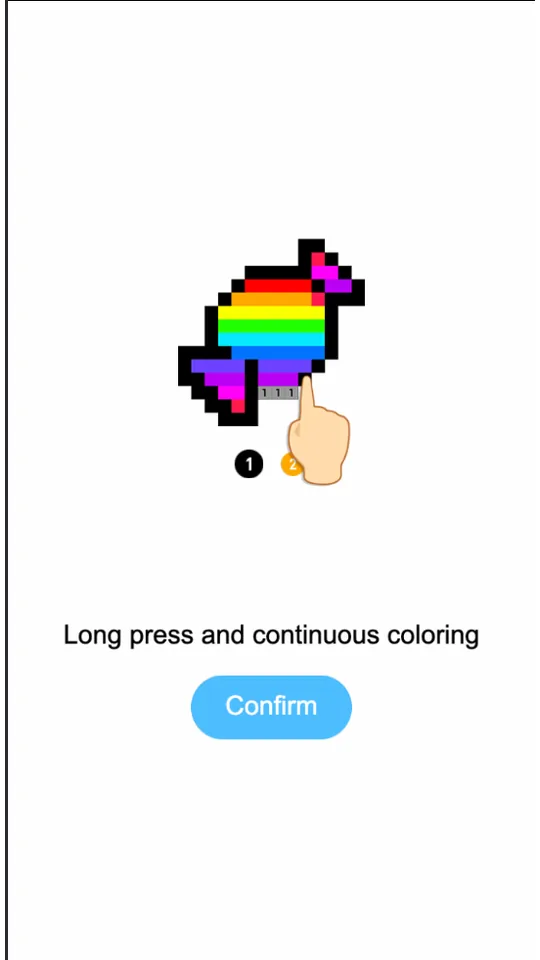
Open the help guide to learn controls such as long press and continuous coloring.
Pixel Color Game Features
Pixel Color combines classic color-by-number gameplay with the distinctive visual style of pixel art.
- Color-by-number gameplay: Match numbered pixels with their corresponding colors.
- Pixel art library: Browse different pictures and choose what you want to color.
- Detailed zoom view: Zoom into the artwork to see individual numbered squares clearly.
- Useful coloring tools: Use individual coloring, the brush, and continuous coloring for different situations.
- Simple controls: The basic gameplay is easy to understand without complicated controls.
- Relaxing progression: Complete each picture gradually and play at your own pace.
What Skills Can Pixel Color Help You Practice?
Pixel Color is primarily designed for entertainment, but its color-by-number mechanics also involve several useful cognitive skills.
Attention to Detail
A pixel picture can contain many small numbered squares. Finding the correct numbers encourages careful observation, especially when only a few unfinished pixels remain.
Number and Color Matching
The core gameplay asks you to connect each number with its corresponding color and locate matching pixels throughout the artwork.
Visual and Pattern Recognition
At first, much of a picture may appear gray or unfinished. As more pixels are colored, separate blocks gradually become recognizable shapes and eventually form a complete image.
Focus and Concentration
Completing detailed pixel artwork requires sustained attention. Working through one numbered color or one section at a time gives you a clear visual task to focus on.
Patience
Large pixel pictures are completed gradually. Each group of colored pixels represents visible progress toward the finished artwork.
Why Is Pixel Color Relaxing?
One satisfying part of Pixel Color is watching an unfinished numbered picture gradually transform into colorful pixel art.
There is no need to rush. You can focus on one number, one color, or one small section at a time. The combination of simple rules, repetitive coloring actions, and visible progress makes the game suitable for slower-paced casual play.
Tips for Playing Pixel Color
- Zoom in when numbers are difficult to see. A closer view makes individual numbered pixels easier to identify.
- Work through one color at a time. Find other pixels with the same number before switching colors.
- Use the brush for larger areas. It can make repetitive coloring faster.
- Try continuous coloring. Long press when you want to work through matching areas more efficiently.
- Check unfinished areas carefully. Zoom in and scan the picture for small sections you may have missed.
Most importantly, there is no need to finish a picture as quickly as possible. Pixel Color is about the gradual process of turning a numbered grid into finished pixel art.
Start Coloring with Pixel Color
Choose a picture from the Library, select a numbered color, zoom into the pixel grid, and begin filling the matching squares.
Use precise coloring for small areas, switch to the brush when you want to work faster, and open the help guide whenever you need a reminder about the controls.
Pick a pixel artwork and watch it come to life, one color at a time.